Meadhall
Events, reminders and attendance
Make events, sign up, plan parties, remind people, and record who came.
The Events page
Events shows what's coming (and what started in the last few hours), in your own time zone. CPs, clans, guilds and raid teams have it; an alliance has it too, for events it sends to its linked groups (below).
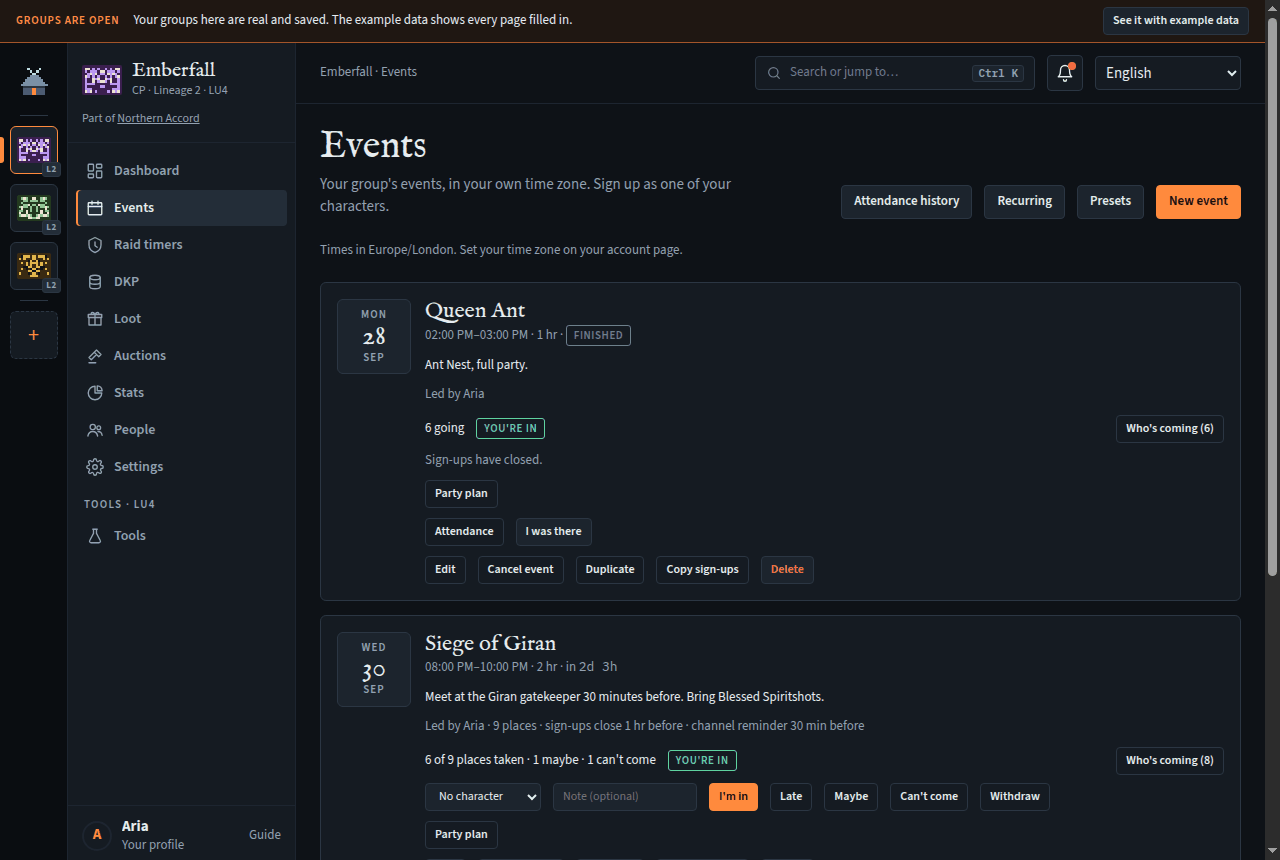
Each event shows its date, time, length and state (in 2d 3h, Under way, Finished, Cancelled), its details, who leads it, and a line with its places, when sign-ups close, its minimum turnout and its channel reminder.
Signing up
Needs Sign up for events (every member).
- If you have characters on the group's game and server, pick which one (or No character).
- Optionally type a Note (up to 200 characters), such as "20 min late".
- Press I'm in, Late, Maybe or Can't come. A pill shows your answer.
- Changed your mind? Press another answer, or Withdraw.
- In and Late take a place. When every place is taken, I'm in reads Join the waitlist; when a place frees up, the first person waiting moves in.
- Once sign-ups close ("Sign-ups have closed.") or the event is cancelled, the buttons go.
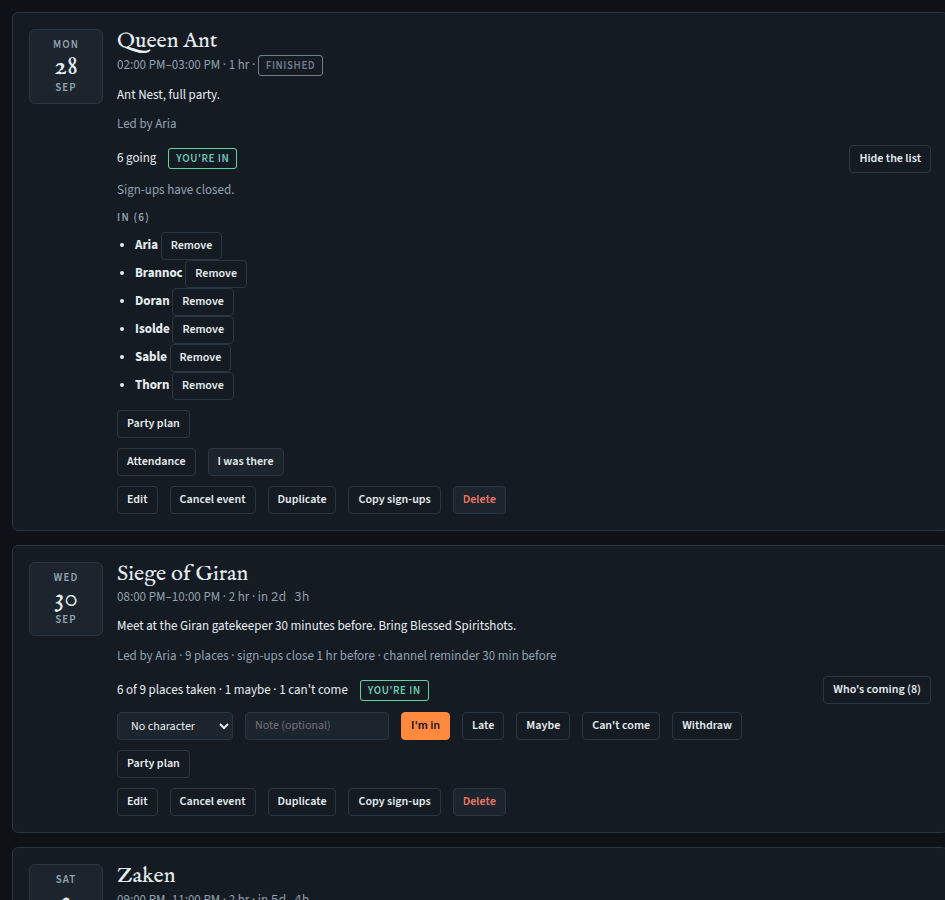
- Who's coming (n) lists everyone by answer: In, Late, Maybe, Waitlist, Can't come.
From Discord: the Sign up, Late, Tentative and Can't come buttons on the bot's event post do the same. Sign up, Late and Tentative use the character you last chose there, and Change character switches it; Can't come records no character (the bot's posts).
Making an event
Needs Create events (officers). You can then edit your own events; Manage everyone's events edits any.
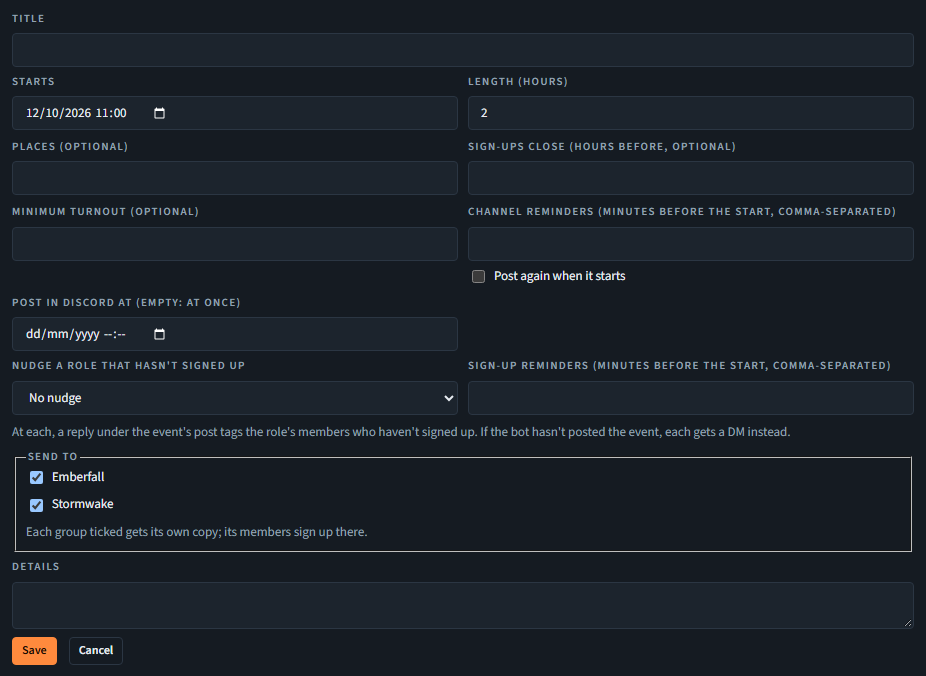
- Press New event.
- Optionally Start from a preset: it fills in the shape below.
- Fill in the Title, when it Starts (in your time zone) and its Length (hours).
- Optional: Places (a limit, with a waitlist beyond it); Sign-ups close (hours before, up to a week); Minimum turnout (if fewer are in or late when sign-ups close, the event is cancelled by itself); Channel reminders (minutes before, comma-separated, up to 5) and Post again when it starts (see reminders); Nudge a role that hasn't signed up and its Sign-up reminders (minutes before, comma-separated, up to 5: at each, the role's members with no sign-up at all are tagged under the event's post); Post in Discord at (when the bot posts it; empty is at once); Post it in this Discord channel (shown once your group has linked its Discord server: it lists the server's text and announcement channels where Meadhall has View Channel, Send Messages and Embed Links, so a private channel shows up only once the server gives Meadhall those there; leave it for the announcements channel; changing it after the event is up moves the post: it's posted again in the new channel, notifying nobody, and the old one is deleted); Ping a Discord role when it's posted (shown once your group has linked its Discord server: the post names that role at the top and notifies it once, when it goes up, not on later updates; a role that not everyone may mention needs Meadhall to have Discord's Mention @everyone, @here and All Roles permission); Details.
- Press Save.
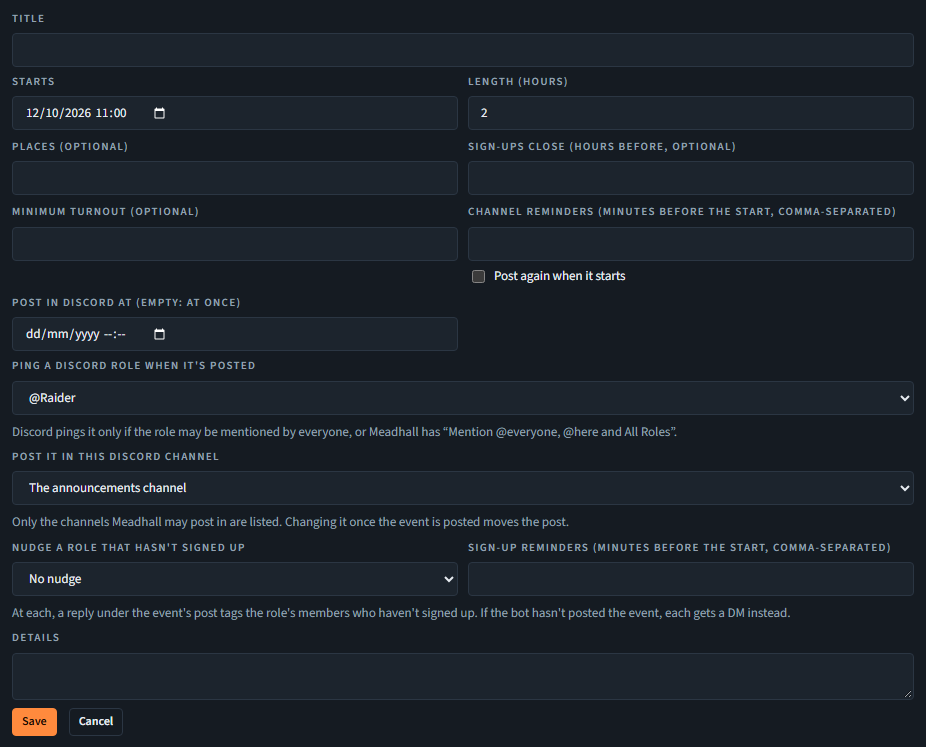
Events can be up to a year ahead. A group can have up to 200 upcoming events.
Changing an event
The event's leader with Create events, or Manage everyone's events.
- Edit: the same form.
- Cancel event marks it cancelled (it stays, struck through); Reopen undoes that.
- Duplicate: a copy at a New start (a week later to begin with); tick Copy the sign-ups too if you like.
- Copy sign-ups: bring another event's sign-ups into this one.
- Remove beside someone in Who's coming takes them off (it asks first).
- Delete asks first, and can't be undone.
Presets and recurring events
Needs Edit event presets (officers).
Presets
A preset is an event's shape: its length, places, when sign-ups close, minimum turnout, channel reminders, a nudge role and its sign-up reminders, the Discord role to ping, the channel to post it in and details. Press Presets, then New preset, give it a Name and fill in the shape; Save. New events can then Start from a preset. Editing or deleting a preset doesn't change events made from it. Up to 25 presets, or 5 on Free (Plans).
Recurring events
Weekly events Meadhall posts by itself, a set number of hours ahead.
- Press Recurring, then New recurring event.
- Type a Title. Put
{n}in it to count: Siege #{n} becomes Siege #12, Siege #13…; Next number says where to start. - Tick the weekdays, set the Time and Time zone, how many hours ahead to post (1 to 672: 24 is a day, 168 a week), and optionally a Last date; then the same shape fields as an event.
- Press Save. The list shows when the next one is posted. Pause / Resume stop and restart it; Delete stops it for good, and the events it already posted stay.
Editing a recurring event later doesn't post it again. Its events that haven't started take the new shape (reminders, places, details and the rest) in place: sign-ups stay, and their Discord posts are edited. A new title, weekday or time applies from the next one posted; a day that already has its event doesn't get a second.
The party plan
Every event has a Party plan: parties, phases and who goes where, like a siege sheet. Members see it once the leaders tick Show the plan to members; until then it says "The leaders haven't shown the party plan yet."
Editing needs the right to edit that event. Saving a party as a template needs Edit event presets.
- Open Party plan on the event.
- Add a party…: a blank party or one of your templates (up to 10 parties). Name it and give it a type (Mage party).
- Fill each slot from the list of members. A ★ marks members whose class fits the slot; (Party X) marks someone already placed. Someone else (type a name)… puts in someone outside the group, such as an allied party. A person holds one slot per phase.
- Phases (up to 5) are line-ups for different parts of the night: Add a phase, Copy from the previous phase, Remove this phase.
- Each party shows Full, Overbooked or Not ready: n of 9 (of 5 in World of Warcraft), and below, who signed up but isn't placed.
- Press Save. (Leaving with unsaved changes asks first.) Save as template keeps a party's slots for next time.
Soft reserve (World of Warcraft)
In a World of Warcraft group, each event has a Soft reserve button (on WoW Forever, once its raids open in December), except a copy of an event a linked group sent. Before the raid, each member reserves one or two of its items; when one drops, only the members who reserved it roll for it.
Turning it on and off needs the right to edit that event. Reserving needs Sign up for events. Everyone in the group sees the reserves.
- The event's leader opens Soft reserve, picks the Raid (one of your group's game version's) and the Reserves per member (1 or 2), and presses Turn on. While anyone has reserved, the raid can't change, and the number can't go below what someone holds.
- Each member picks their items and presses Reserve. The items come from the raid's loot list, read daily from Battle.net, for Retail's raids and the Classic raids Blizzard still lists: Mists of Pandaria Classic's, the Anniversary realms' Burning Crusade raids, and on Classic Era and Hardcore Molten Core, Blackwing Lair and both Ahn'Qiraj raids. Until a list has been read, there's nothing to pick yet. For the other raids (Era's Onyxia's Lair, Zul'Gurub and Naxxramas, whose later versions Blizzard lists instead, and Season of Discovery's reworked loot), type the item's name. Reserving again replaces your reserves; Withdraw my reserves takes them back.
- Who reserved what lists each item with the members who reserved it, as the characters they signed up as, the most reserved first.
- Reserves close when the event starts, or if it's cancelled. Turn off deletes everyone's reserves for the event, and so does deleting the event.
Reminders
- In your Discord channel: an event with Channel reminders set is reminded once per reminder time you set (up to 5). If the bot has posted the event, the reminder is a reply under that post, "Title starts in 30 minutes", mentioning everyone in or late (up to 100 people, Discord's limit for one message). Otherwise the group's reminder channel (Settings, Discord channel, on every plan) gets "Title starts in 30 minutes (20:00). 8 of 12 signed up." Tick Post again when it starts to be reminded again right as the event starts too; untick it and nothing is posted at the start. Leave the minutes empty and nothing is posted ahead of it. An event cancelled for too few sign-ups is announced in the reminder channel too. These messages are in the group's language for public posts (Settings, Meadhall in your Discord, Language of public posts), English until one is chosen.
- Nudging a role: if the event has a Nudge a role that hasn't signed up set, its Sign-up reminders (minutes before the start, up to 5, separate from the channel reminders) each post a reply under the event's post, "Title starts in 2 hours. Not signed up yet: @…", tagging members who hold that role and have no sign-up at all for the event yet, so it's in the channel for everyone to see (up to 100 people). If nobody's left to tag, nothing is posted. If the bot hasn't posted the event, there's no post to reply to, and they get a DM instead. Anyone who's already responded, in any status, isn't nudged, including on a linked group's copy of the event. Channel reminders don't tag them.
- In your browser: on your account page, Event reminders in this browser, choose 5, 15, 30 or 60 minutes before. Your browser asks to allow notifications. You're reminded of events you're in, late or maybe for, while Meadhall is open in a tab on that browser. Clicking the notification opens the group's Events.
- The bot's post in your announcements channel (or the channel chosen for the event), at the time you chose (the bot), and, if you're in or late, a DM at each of the event's reminder times.
Meadhall doesn't send email.
Attendance: who came
Confirming needs Confirm who came to events (officers), or leading the event. Paying DKP with it also needs Award and adjust DKP, reverse a batch.
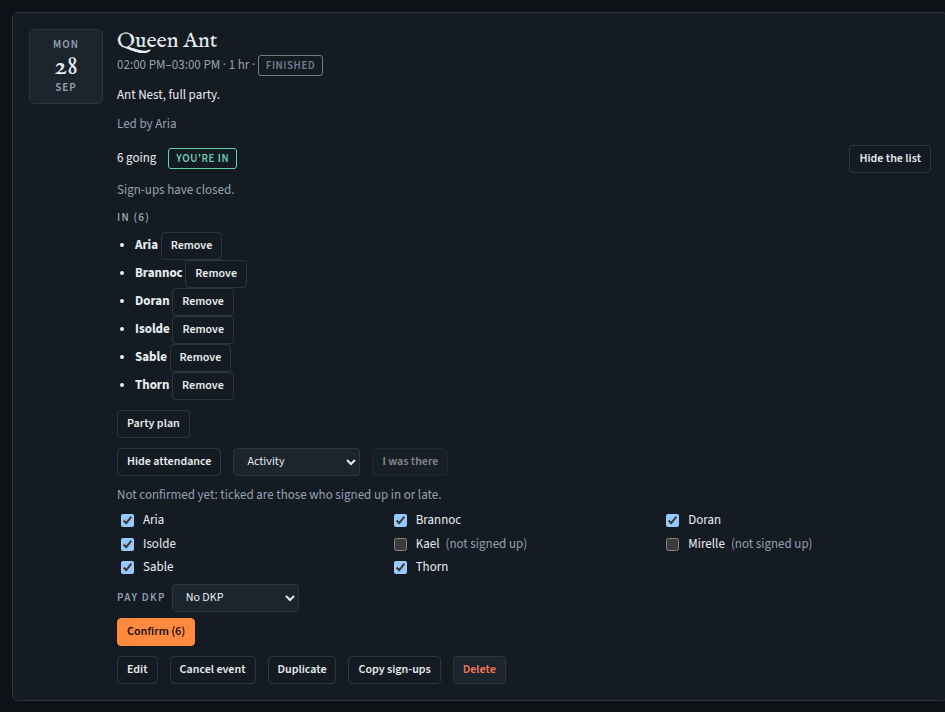
Once an event has started, it has an Attendance button. Everyone can see what was confirmed.
- Press Attendance. Everyone who signed up in or late is ticked; everyone else in the group is listed too, marked (not signed up).
- Untick who didn't come, tick who came anyway.
- To pay DKP for it, pick an activity under Pay DKP (or leave No DKP).
- Press Confirm (n). It shows "n came, confirmed by … ", and, if you picked an activity, everyone ticked is paid its points, as one line in the DKP ledger.
You can add people later: tick them and confirm again, and only they are paid. Once DKP is paid, nobody can be taken off here and the activity is fixed; adjust their DKP instead (DKP). Nobody is paid twice for the same event.
A confirmation made in error: Withdraw the confirmation asks first, then reverses the points it paid (that needs Award and adjust DKP, reverse a batch). The attendance drops out of the history and can't be confirmed again for that event.
On a copy of a linked group's event with DKP here for linked groups' attendance set, confirming also gives each attendee's shared main that group's points: see Points from linked groups.
"I was there"
Needs Claim DKP for a party you were in (every member), within 14 days of the event starting.
If the officers haven't confirmed you, press I was there on the event (pick the activity first, if asked). It makes a DKP claim for that event, or adds you to it; no screenshot is needed, the event is the evidence. It then says "You said you were there: waiting for approval.", with Take me off. When an officer approves it (on the DKP page's Claims tab), you're added to the attendance and paid through it.
The Events page stops listing an event hours after it ends. After that, and even once its attendance is confirmed, the button stays reachable for the whole 14 days: the event waits in the attendance history's Waiting for attendance list until the window closes.
Attendance history
Needs See events (every member).
Attendance history shows, for the last 30, 90 or 365 days, how many confirmed events each member came to and their percentage, and which events are still waiting: for their attendance, or, for 14 days after they start, for anyone who hasn't said I was there. Download CSV saves it as a spreadsheet file.
Events for linked groups
In an alliance or clan with groups linked under it; needs Create events.
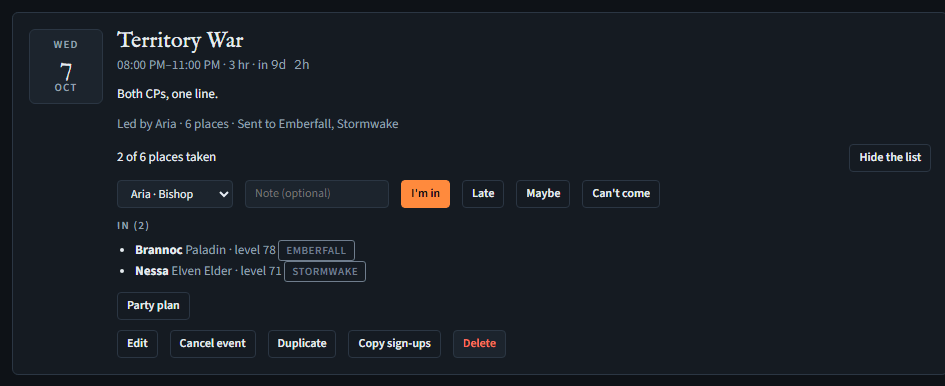
The New event form (and presets, and recurring events) has Send to: tick the linked groups it's for. Each gets its own copy, marked "From …", with the same title, time, length, places, sign-up close, minimum, channel reminders, details and Post in Discord at. The nudge role, Discord role to ping and channel to post in don't carry over (each is one group's own); their members sign up on their own group's copy, on the site or with the bot's buttons.
- Editing or cancelling the event changes every copy. A copy can't be changed in the group that got it.
- Deleting the event cancels the copies; they stay, cancelled, with their sign-ups.
- Unticking a group, or the link ending, leaves that group its copy as its own event: the "From" goes and its sign-ups stay.
- An event sent to linked groups is cancelled for too few sign-ups like any other: the minimum counts every group's sign-ups together, and cancelling it cancels every copy along with the original.
A member of a linked group signs up on their own group's copy: the event above refuses them and names the group. Someone who's a member of several of those groups signs up in whichever one they choose.
Places count everyone. The event's limit is shared by every group it's sent to: a copy shows the places left across all of them, and once they're gone In or Late joins the waitlist, whichever group you're in. A place freed anywhere goes to whoever has waited longest, in any group.
The group that sent it sees everyone, by group, under Who's coming, and can place any of them in its party plan. Each group's own copy lists only its own members. The group above sees only a linked member's character, class, level and status there, not their sign-up note.