 Meadhall
Groups, people and roles
Moving around the hub, the People page (roster, requests, codes, roles, roles from Discord), and a group's Settings.
Finding your way around
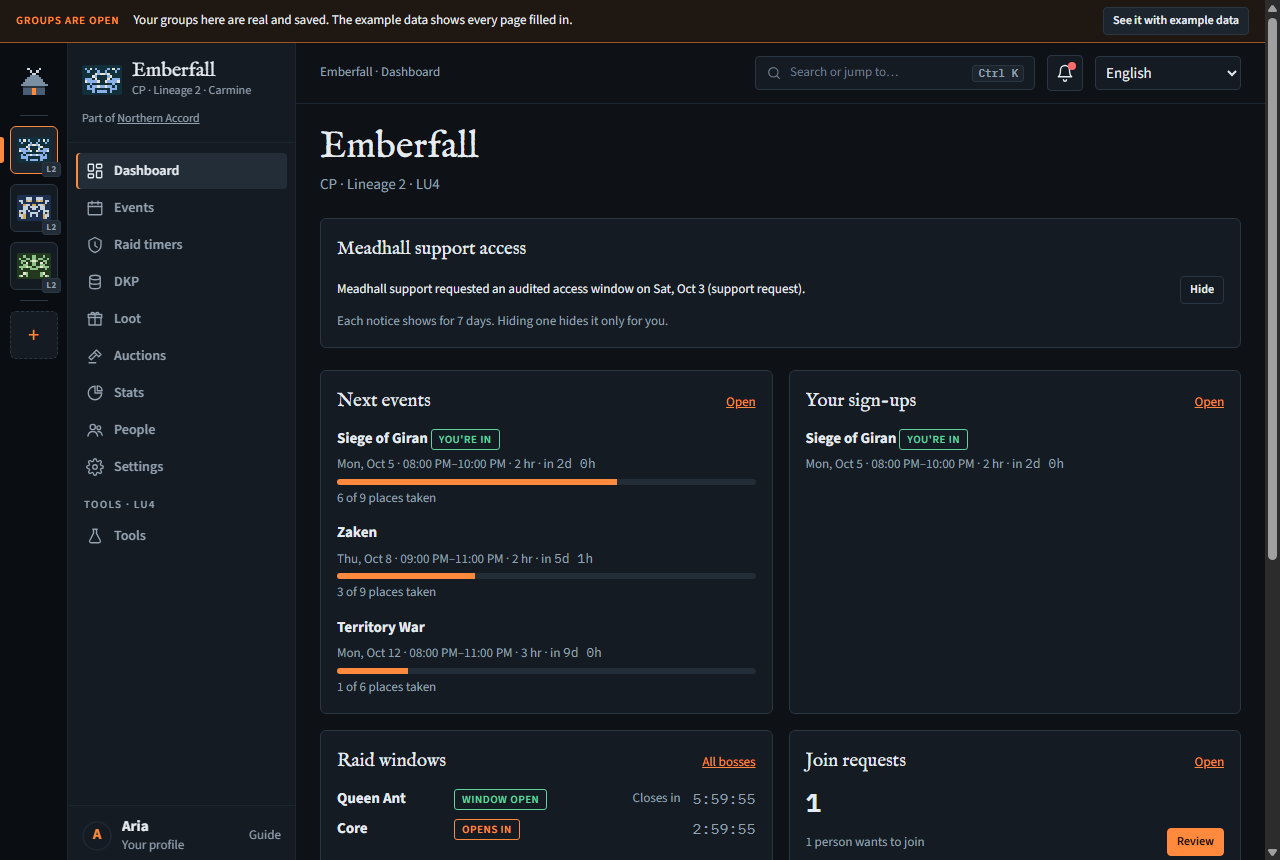
- The left rail holds one crest per group you're in (tagged L2 or WoW). Click one to open its Dashboard. + at the bottom opens Create or join.
- The menu beside it shows the group's name, kind · game · server, "Part of …" or "Includes …" for linked groups, and the group's pages. Every member sees every page; what you may do on each depends on your roles. At its foot: Your account, with your initial and name (your account page; Sign in there when you're signed out), and Guide (this guide).
- Search (Ctrl K, or the search box at the top) jumps to any page of any of your groups, your account, or Create or join. Type, move between matches with ↑ ↓, and Enter opens the highlighted one.
- The bar at the very top links the same page on example data. Its × hides it in this browser.
- The language list at the top changes the hub's language in this browser. Your account's language (on your account page) is what the Discord bot and new browsers use.
- On a phone, the menu hides behind the ☰ button and a bar at the bottom holds the group's first pages and More.
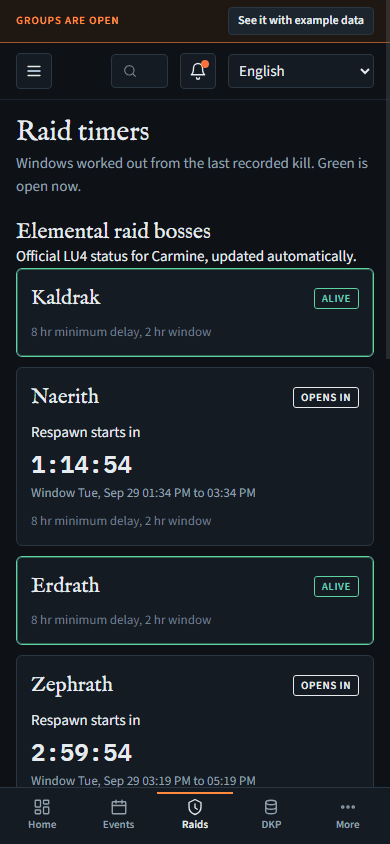
The Dashboard
Each group opens on its Dashboard: tiles for what's coming and what needs you. You see a tile only if your roles let you see what it shows. They refresh every minute.
- Next events (the next three, with how full they are) and Your sign-ups.
- Raid windows open now or opening within 24 hours, counting down (Lineage 2).
- Clan (LU4 clans, and LU4 CPs linked under a clan): Proof of Loyalty in hand and the clan level.
- Join requests waiting, with Review (if you may approve them).
- Your DKP per pool, and, for officers, how many claims wait for review.
- Recent loot: the last five drops.
- Role: a pill for your role, and shortcuts to People.
- Meadhall support access (leaders only): the date and category of each audited access attempt in the last 7 days, the latest five. It never includes the operator's free-text reason. Hide removes one from your Dashboard only: the other leaders still see it until they hide it too, and after 7 days it goes by itself. The bot also sends each leader a Discord DM when access is requested, whatever their notification settings, if their Meadhall account is linked to Discord and they share a server with the bot.
If Meadhall suspends a group
Meadhall support may suspend a group for abuse. The group stays open for reading, and its leaders (and anyone they've given Download the group's data) can still export all of its data, but nobody can change the group through the hub, the Discord bot or scheduled work. Leaders see a notice at the top of every group page with the reason. Support can restore the group after reviewing it; restoration makes changes available again without deleting or resetting anything.

The roster
People, Roster: everyone in the group, with their main character (its name, class, level and any subclasses, on the group's game and server; in a World of Warcraft group, also its realm, after the name, and its Item level column; a dash until they mark a main on their Me page), their roles and when they joined. Each subclass shows its class and level. Your own row says (you). With Change the class and level of members' characters (leaders hold it; a leader can add it to a role), Edit, beside another member's main's name, changes its class and level, if they're out of date; a leader's main only a leader can change. Its name, subclasses and the rest stay the member's to change, on their Me page. The member gets a Discord DM saying who changed it, and from what to what (unless they've switched that DM off), and their Me page shows Changed by that person, in which group and when, until they save the character themselves. A pill says Left Discord, with the date, when someone left your linked Discord server, and a second one, Suspended, once they've been gone 30 days (below).
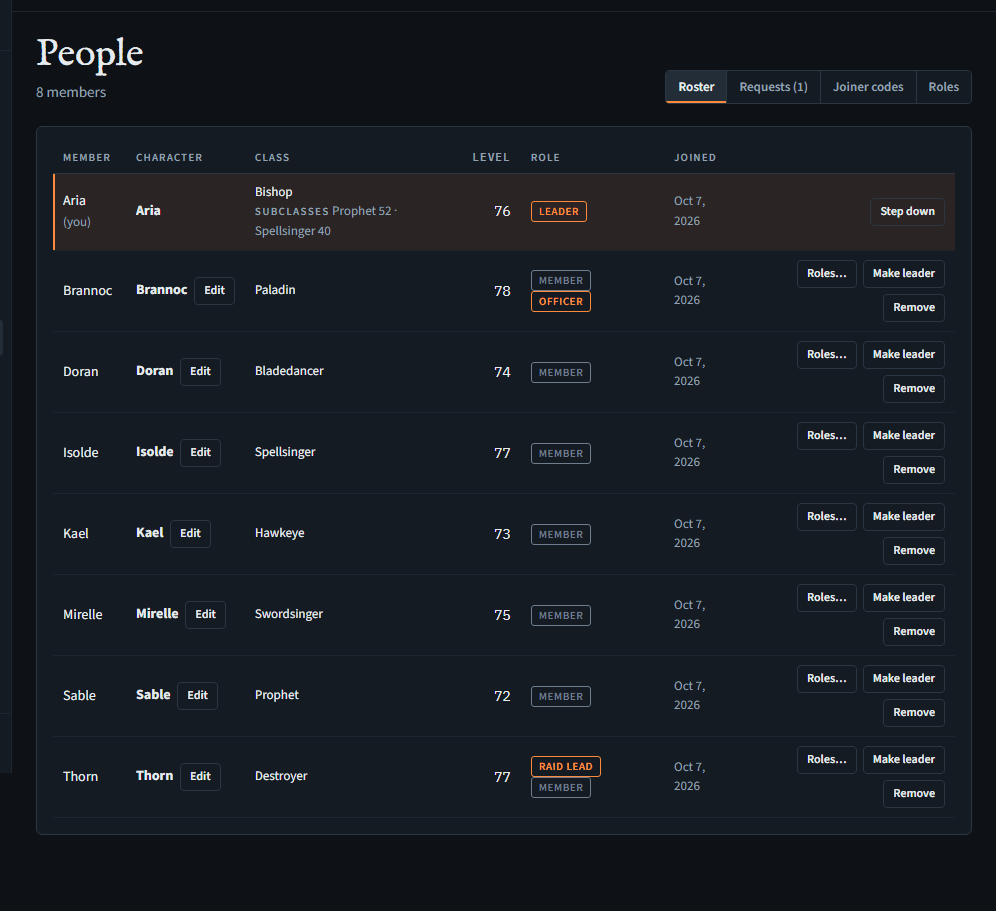
| Button | Who may | What happens |
|---|---|---|
| Roles… | Give and take roles; not on yourself or a leader | Tick roles and Save. A role with a permission you don't have is greyed out: "(has permissions you don't)". |
| Make leader | Leaders | Asks "Make … a leader? Leaders can do everything, including deleting the group." |
| Step down | A leader, on their own row | You stay in the group as a member. The last leader can't step down: make someone else leader first. |
| Remove | Leaders, or Remove members; not on a leader | Asks first. They lose access at once; to come back they need a new code. |
When a member leaves your Discord server
Once your group has linked a Discord server and the bot is on it, Meadhall notices within seconds (and checks at least every 15 minutes) when a member leaves the server, or loses the Who's in this group on Discord role if you've picked one (Roles from Discord). Their row gets the Left Discord pill and nothing else changes yet. If they're still gone 30 days later, they're suspended: they stay in the group with their roles, DKP and characters, but they can't open the group in the hub or use it through the bot, and the group's Discord messages to them stop. They can still leave the group. When they come back to the server (or get the role back), the mark and the suspension go by themselves. Leaders, members with no Discord account on their membership, and members who are in only through a linked CP are never marked, and unlinking the server clears every mark. To take someone out for good, use Remove.
Join requests and codes
Approve join requests for the Requests tab; Joiner codes for the codes tab. Officers and leaders have both.
- Requests (n): Approve lets them in ("… is in."); Decline refuses, without asking again.
- Joiner codes: Days (1 to 90) and Uses (blank: any), then New code. The table shows how often each was used and when it expires. Copy copies the code; Revoke stops it at once, without asking. A group can have up to 20 live codes, or 3 on Free (Plans).
- Joining from Discord, if the group allows it, arrives here too (the bot).
Roles and permissions
People, Roles: what each role lets its holders do. Everyone in the group can read it.
- Leader isn't a role you edit: leaders may do everything. Only a leader can make or unmake a leader (handing the group over), delete the group, or pay for it (the Plan card and licence keys). Everything else is a permission a leader can give a role, so a leader can hand the group's setup and running to others.
- Member and Officer exist in every group.
- Up to 25 roles of your own, or 5 on Free. Someone with several roles may do everything any of them allows.
- Nobody can give a role with a permission they don't have themselves, and nobody changes their own roles.
- Seeing the group, its pages and its roster isn't a permission: every member can.
Make or edit a role
Needs Create and edit roles (leaders, unless they give it to a role).
- Press New role, or Edit on a role (you can edit only roles whose permissions you all have).
- Give it a Name and tick its permissions; press Save.
- Delete role (your own roles only) asks first; everyone holding it loses it.
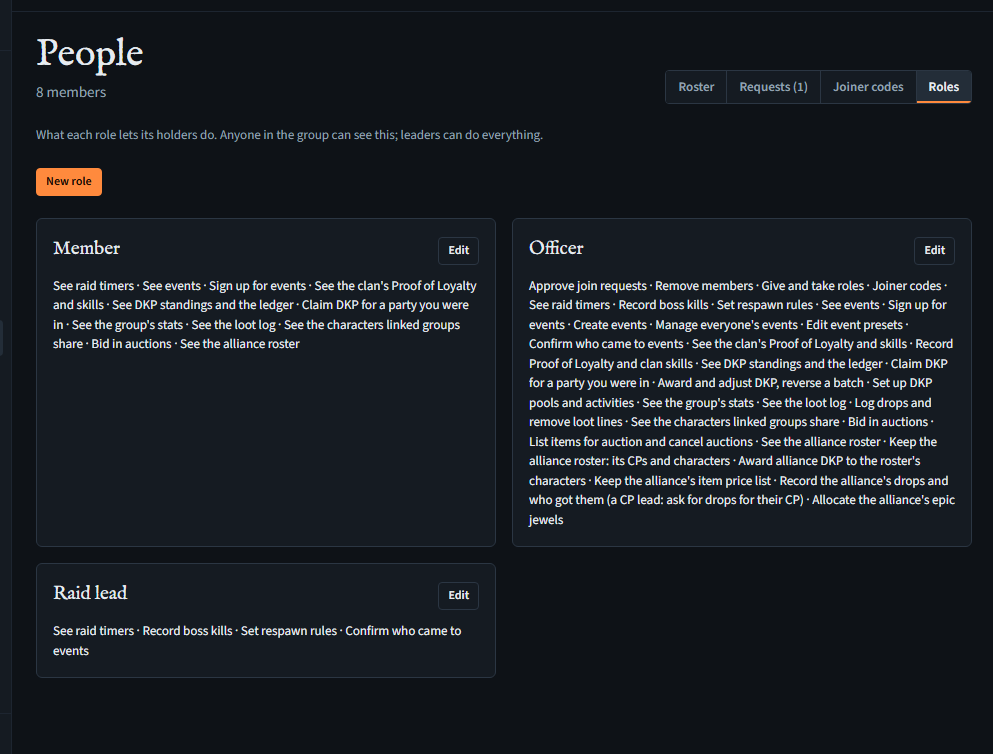
The permissions, and who starts with them
| Permission (as the hub names it) | Member | Officer |
|---|---|---|
| See raid timers · See events · Sign up for events · See the clan's Proof of Loyalty and skills · See the group's stats · See DKP standings and the ledger · Claim DKP for a party you were in · See the loot log · Bid in auctions · See the characters linked groups share · See the alliance roster · Change the group's craft calculator prices (LU4) | yes | yes |
| Approve join requests · Remove members · Give and take roles · Joiner codes | yes | |
| Record boss kills · Set respawn rules | yes | |
| Create events · Manage everyone's events · Edit event presets · Confirm who came to events | yes | |
| Record Proof of Loyalty and clan skills | yes | |
| Award and adjust DKP, reverse a batch · Set up DKP pools and activities | yes | |
| Log drops and remove loot lines · List items for auction and cancel auctions | yes | |
| Keep the alliance roster: its CPs and characters · Award alliance DKP to the roster's characters · Keep the alliance's item price list · Record the alliance's drops and who got them · Allocate the alliance's epic jewels | yes | |
| Rename the group, change its world (LU4's Gamma, ElmoreLab's Erica x3...), Other server's name or WoW realm, and its crest · Create and edit roles · Manage the Discord link · Link groups · Import the alliance roster from a spreadsheet · Download the group's data · Approve or reject your own DKP claims · Change the class and level of members' characters |
The last row belongs to leaders until a leader adds it to a role.
In an alliance, a member can also be a CP lead: their Keep the alliance roster, Import the alliance roster from a spreadsheet and Award alliance DKP to the roster's characters then reach only their CP, Keep the alliance's item price list and Allocate the alliance's epic jewels reach nothing, Record the alliance's drops and who got them reaches only open drops and their own CP's requests, and they can't give, take or edit a role that holds any of them.
Roles from Discord
Needs Manage the Discord link, and a linked Discord server (Getting started, step 7).
Once your server is linked, each role card on the Roles tab has a Discord role list, and a Roles from Discord card appears.
- For each Meadhall role that should follow Discord, pick the Discord role that means the same. (None: it stays Meadhall's own.)
- Optionally, under Who's in this group on Discord, pick a Discord role that everyone in the group holds, or leave Everyone on the server. This is also the rule for Automatic joining from Discord (the bot): holding this role lets someone in without approval, and with Everyone on the server, anyone on the server gets in.
- Press Check what a sync would change. Nothing changes yet: you see, per member, the roles they'd gain (+) and lose (−), and who can't be matched (not signed in to Meadhall yet, or not on the server).
- Press Apply n changes. Mapped roles now follow Discord; other roles and leaders stay as they are. Your own roles are never synced.
You don't have to press it: once the bot is on your server, mapped roles follow Discord on their own, at least every 15 minutes and usually within seconds of a change on Discord. A member who holds a mapped Discord role gets the Meadhall role, and one who no longer holds it loses it; a member who has left the server (or no longer holds the Who's in this group on Discord role) is marked as having left Discord, and suspended if still gone after 30 days (when a member leaves). Leaders are never changed. A sync applies the same at once, but only for roles whose permissions you hold yourself; the automatic updates give the rest. Each sync, and each automatic change, is written in the group's changelog.
Only someone who holds every permission of a role can map it. If the role's permissions change later, Discord keeps giving it, with its permissions as they are now: there's nothing to approve again.
Settings
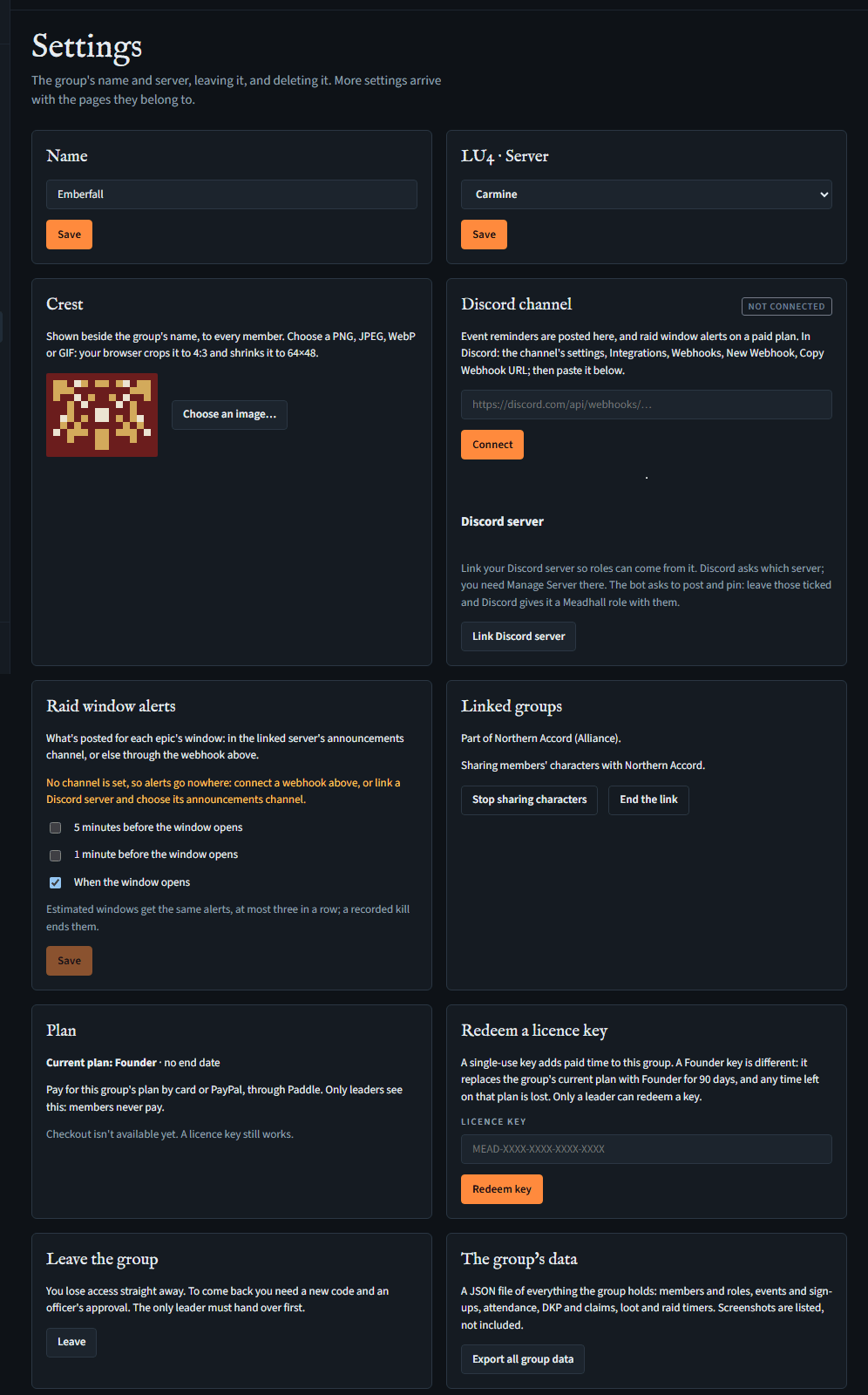
| Card | Who may | What it does |
|---|---|---|
| Name | Rename the group | Type a new name, Save. |
| LU4 · Server | Rename the group | For a Lineage 2 CP or clan, choose Gamma, Black, White or Carmine, then Save. This chooses the group's live server data; characters and shared LU4 tools stay on LU4. |
| <server> · Server | Rename the group | On another Lineage 2 server that lists its worlds (Reborn, ElmoreLab, ElmoreLab Kamael, Asterios, E-Global), a CP or clan chooses one, then Save. On Reborn every kind of group has one, alliances too, and only the worlds on the group's version are offered: Signature x1 and Eternal x10 (Interlude), or Origins (High Five) alone. On Scryde, a CP or clan types its world. The list is in Getting started. |
| Other server · Server name | Rename the group | On Other server, every kind of group, alliances too, types the server's name (1 to 32 characters), then Save. It can be changed, not left empty. |
| Realm | Rename the group | For a World of Warcraft guild or raid team, type its realm as the game spells it (up to 32 letters, digits, spaces, apostrophes, hyphens or brackets), then Save. The menu then shows it with the server, as in Silvermoon (EU Retail). Once set, it can be changed but not emptied. |
| Crest | Rename the group and change its crest | See below. |
| Discord channel | Manage the Discord link | A webhook for reminders, on every plan: event reminders on any plan, raid window alerts on a paid one (Plans). Connect, Send a test message, Disconnect. |
| Raid window alerts | Manage the Discord link (Lineage 2) | Which raid window alerts are posted: 5 minutes before, 1 minute before, and when the window opens (on by default). On a paid plan (Plans): on Free the switches show, locked. Save sends the switches changed. See Window reminders. |
| Discord server | Manage the Discord link | Link Discord server adds the bot; Unlink asks first, then roles stop coming from it. |
| Meadhall in your Discord | Manage the Discord link, once linked | The bot's channels, joining from Discord (with Automatic, a line under it names the group role that lets people in and links to where it's set, Roles from Discord), the language of public posts, and whether members may share replies to a channel. It also sets registration reminders to Off, Every 3 days or Weekly: with Automatic joining and a specific group role, the bot privately sends the join link to role holders not yet in the hub. Send the link now sends it once at the bot's next check, in your name, once a day. Registration message lets you write the message's opening yourself, with {sender}, {group} and {server} filled in (how the message reads). The same settings are in /settings; /setup sets the channels and joining rule. |
| Linked groups | Everyone sees it; Link groups to change it | Alliances and linked groups. |
| Plan | Leaders, and the account that pays even if it's no longer a leader (so it can still cancel) | The group's plan and until when, paying for one with Paddle, and Manage billing for the leader who pays: Paying for a plan. Until checkout is set up, it says checkout isn't available yet. |
| Redeem a licence key | Leaders | Redeeming a licence key. |
| Leave the group | Everyone | Leave asks first. The only leader must make someone else leader before leaving. |
| The group's data | Download the group's data (leaders, unless they give it to a role) | Export all group data: a JSON file (what's in it). |
| Delete the group | Leaders | Type the group's exact name, then Delete the group. Everything in it goes, for everyone. It can't be undone. A big group (an alliance with a long DKP history, say) takes several steps: the line beside the button counts the items deleted so far, so keep the page open until it's done. If the page is closed part-way, the group stays marked as being deleted, so nothing in it can be changed, and its key may already be gone. Meadhall finishes it by itself, usually within a day (a very big group can take a few nights); a leader deleting it again the same way (or, if you were its last member leaving, leaving again) carries it on sooner. If a leader's account is deleted meanwhile, nobody else is made leader of it: the deletion is finished instead. If it still isn't done after 100 steps, the page stops and says so: it still finishes by itself, and deleting it again carries on. |
The crest
Every group gets a generated pixel crest. To use your own:
- Settings, Crest: press Choose an image… and pick a PNG, JPEG, WebP or GIF (a GIF's first frame).
- Your browser crops it to 4:3 and shrinks it to 64×48; a preview shows the result. Tick Keep pixels sharp for pixel art or a game crest, or Show the whole image, without cropping.
- Press Save. Every member sees it within a minute or so.
- Use the generated crest goes back.
A very detailed picture may be refused ("too detailed for a crest"): try a simpler one.