 Meadhall
DKP, claims and screenshots
Points per pool: earned, spent and what's left. Every change is a line in a ledger everyone in the group can read. New to DKP? How it works in Lineage 2, in World of Warcraft and on WoW Forever.
DKP is on Lineage 2 CPs and clans, and World of Warcraft guilds and raid teams (pools for raid tiers, activities for boss kills, as a guild likes; or EPGP instead, below; or loot council, with wishlists on the Loot page; a raid's soft reserve is on its event). Its tabs: Standings, Ledger, Claims, and for officers Award and Rules. Points can have two decimals (2.5). New to DKP? How it works in Lineage 2 and in World of Warcraft.
Setting it up: pools, activities, decay
Needs Set up DKP pools and activities (officers).
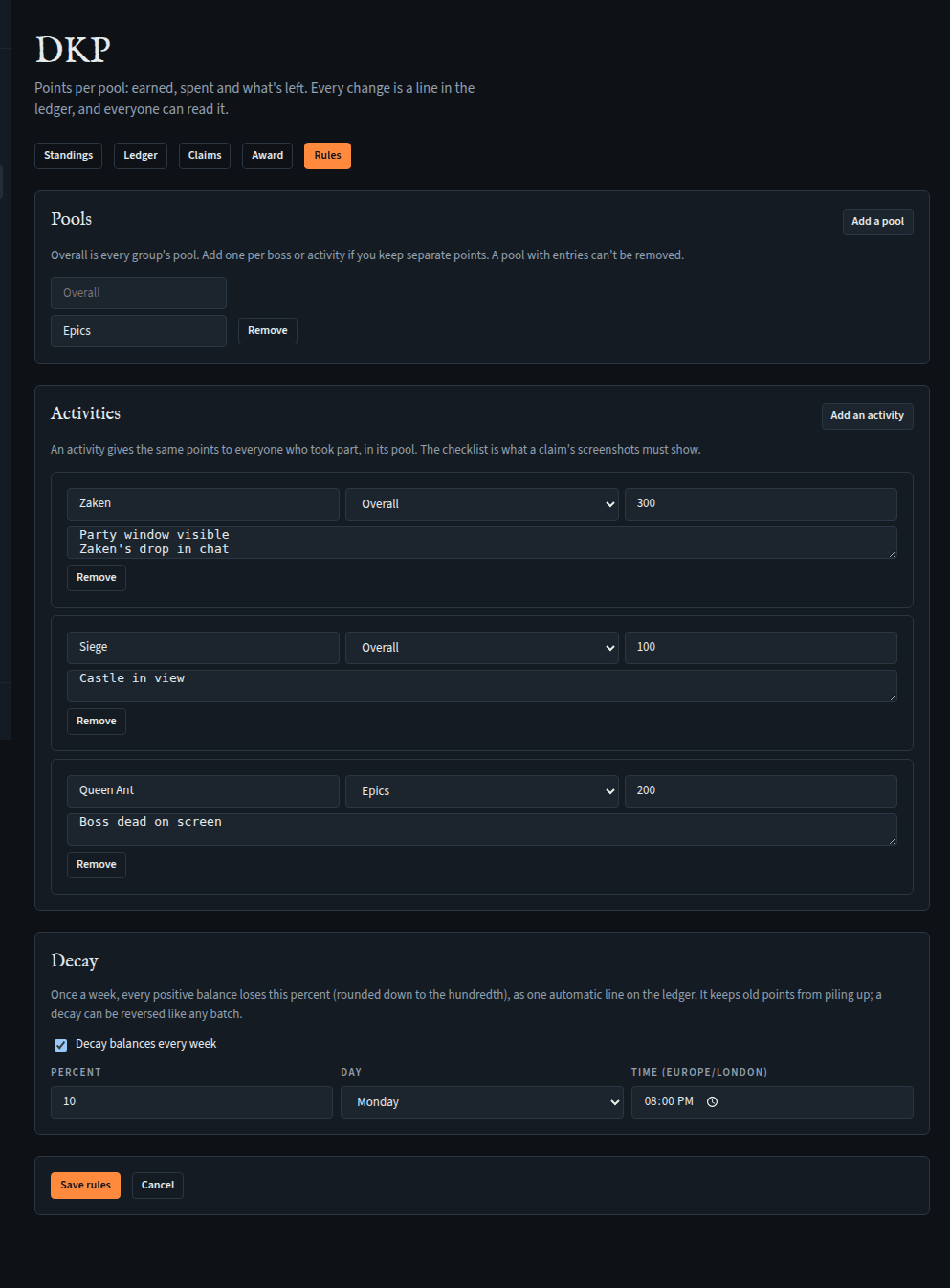
Open the Rules tab.
- Pools: every group has Overall. If you keep separate points (per boss, say), press Add a pool and name it (up to 20 pools). On Free, a DKP group has Overall alone: Add a pool is greyed out (an EPGP group may add its EP and GP pools, below), and a paid plan or a founder code's 90 days (Plans) brings more. A group that moves to Free with several pools keeps them, points, ledger and all: awards into them still work, and they can be renamed or removed, but no pool is added until it has fewer than its plan allows. A pool with entries, or one an open DKP auction bids in, can't be removed. In an alliance, nor can a pool an item on its price list names as its epic, or one any of its drops is in (voided ones too).
- Activities: what earns points. Press Add an activity, give it a Name (Zaken), its pool, its Points, and a Checklist, one line each: what a claim's screenshots must show (Party window visible). Up to 50 activities, and 8 checklist lines of 80 characters each.
- Decay (optional): tick Decay balances every week and set the Percent (1 to 50), the Day and the Time. Once a week every positive balance loses that percent, as one automatic line per pool in the ledger. It keeps old points from piling up, and a decay can be reversed like any line. Decay needs a paid plan or a founder code's 90 days; on Free the card is greyed out. A group that moves to Free with decay on keeps the setting, but no decay runs until its plan has decay again (then the next week's runs, without saving anything); meanwhile it can only be turned off.
- Press Save rules. (Cancel drops your changes. If someone else saved meanwhile, you're asked to look again.)
EPGP instead of DKP
Needs Set up DKP pools and activities.
A group runs one loot system. On Rules, Loot system picks DKP (the default) or EPGP. For EPGP, pick EPGP and make two pools (say EP and GP; EPGP is on every plan, Free included, and these two don't count against the plan's pools), then pick them as the EP pool and the GP pool, set the GP floor, and press Save rules.
- EP is earned as DKP is: activities (boss kills, attendance) award points to the EP pool.
- GP goes up when someone wins an item. On Loot, recording an item bought with points asks for its GP, which is added to the winner's GP pool. Nothing refuses it: GP isn't spent from, it's what priority divides by.
- Priority is EP ÷ GP, the highest first, with GP never counted below the floor, so a new recruit with no GP doesn't jump the queue. Standings starts with the Priority list: each member's EP, their GP as counted (their own beside it when it's under the floor) and EP ÷ GP, highest first. With a floor of 0, someone with no GP yet shows ∞ and goes first.
- Decay, if it's on, takes the same percent off both EP and GP.
- An EPGP group gives items by priority, so it doesn't run DKP auctions; adena or gold auctions still run. Close any open DKP auctions before switching.
How EPGP works, with a worked example: EPGP for WoW.
Standings and the ledger
Needs See DKP standings and the ledger (every member).
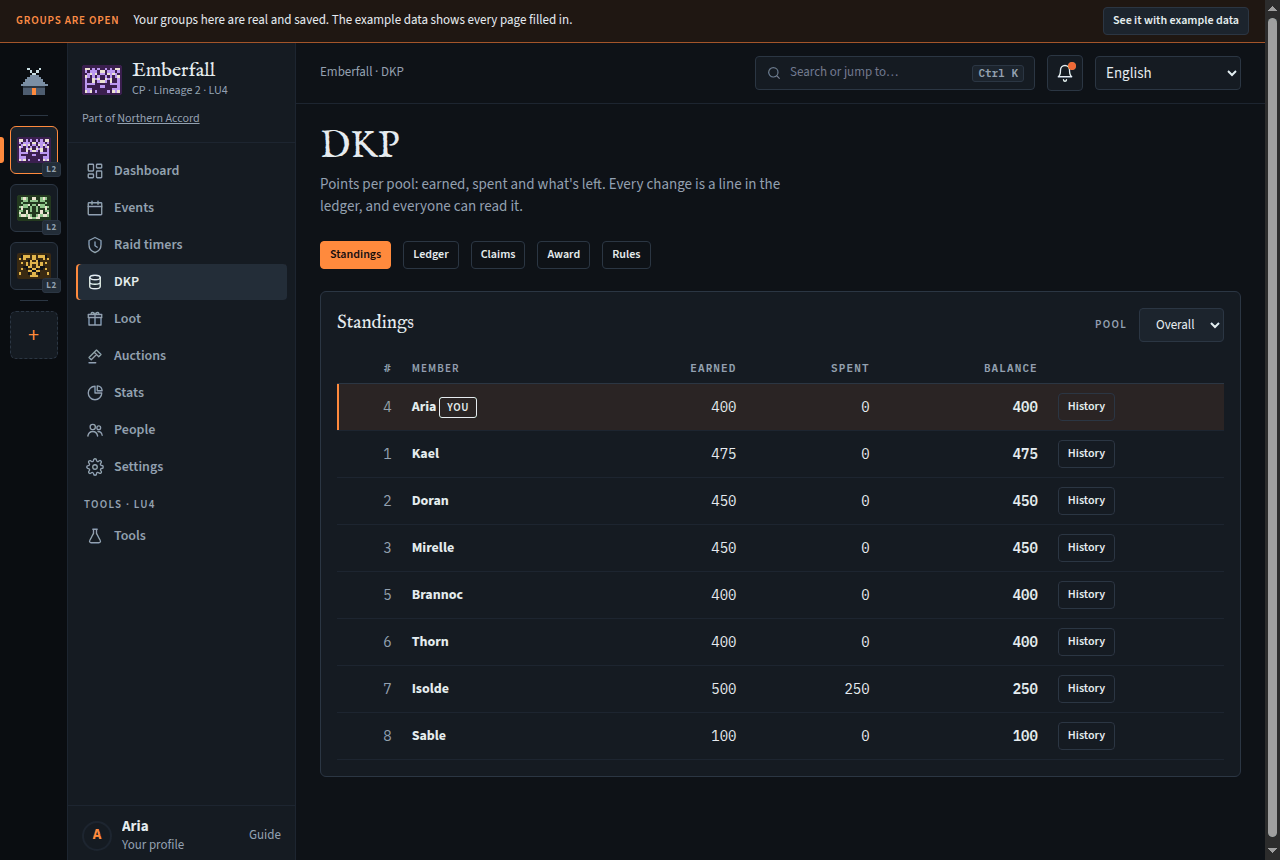
- Standings: per pool (a Pool list when there are several), each member's Earned, Spent, Decayed (once decay has run in that pool) and Balance. Your row is first, marked You. History opens that member's lines in the ledger.
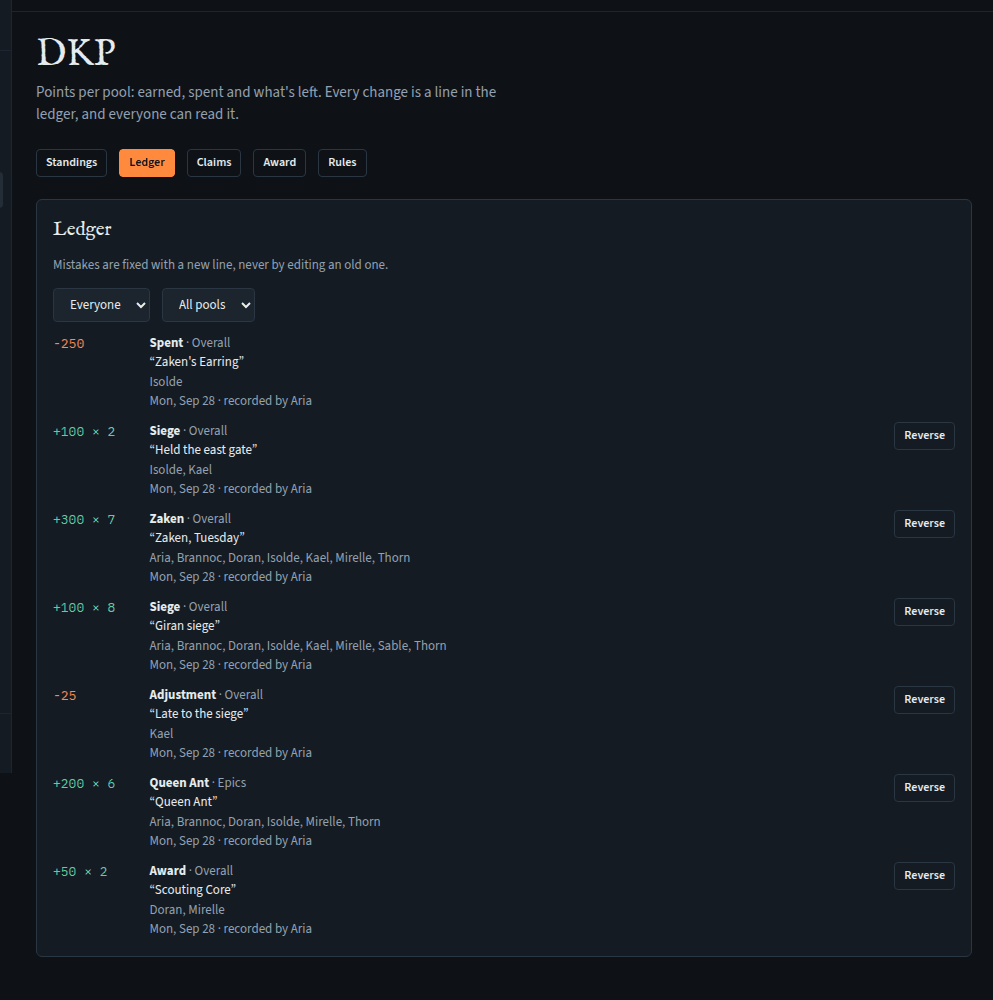
- Ledger: every batch, newest first: the amount, what for, the pool, the reason, who (up to 12 names, then and n more), when, and who recorded it (Automatic for decay and auctions). Filter by member and pool; Older loads more. A member's history looks back through a few hundred batches at a time, so for someone in few of them a page can show fewer batches than usual, or none, with Older going on further back. Its lines are in the order of their batches: a line added to a batch later shows at that batch's time.
- Mistakes are fixed with a new line, never by editing an old one.
Awarding and adjusting
Needs Award and adjust DKP, reverse a batch (officers).
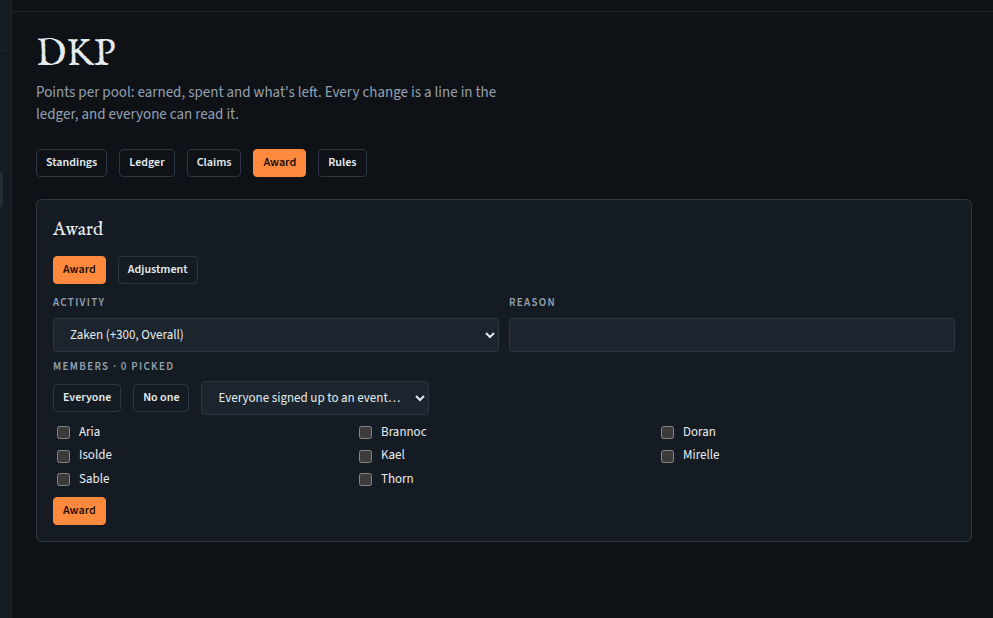
Open Award. Officers may include themselves in an award or adjust their own points: the ledger shows who wrote every line, so the whole group can see it.
Award to several people
- Keep Award selected. Pick an Activity (its pool and points), or By hand and give a Pool and Points.
- Type a Reason.
- Tick the Members: one by one, Everyone, or Everyone signed up to an event… (ticks those in or late for an event of the last two weeks, and fills in the reason).
- Press Award. One batch goes on the ledger.
Adjust one person
- Choose Adjustment, pick the Pool, the Points (+ or −), the Member and a Reason (required).
- Press Adjust.
Limits: 1 to 300 members at once, up to 1,000 points either way per line.
Reversing a batch
In the ledger, Reverse gives everyone in the batch the opposite amount, as a new line (it asks first). A reversal can't itself be reversed, and a loot purchase is refunded from the loot log instead (remove the line).
From Discord: /dkp award and /dkp adjust show a preview, then Write it.
Points from linked groups
An alliance (or clan) that sends an event to its linked groups can say what coming is worth in its own DKP: DKP here for linked groups' attendance on the event (needs Award and adjust DKP, reverse a batch).
- Each group confirms who came on its own copy, as usual, and pays its own DKP with its own activity.
- The same confirmation gives each attendee's shared main the alliance's points, in the pool the alliance's activity is in. The line says which group confirmed it, and who.
- A member who is also in the alliance gets the points on their own balance there instead, whatever this group shares: once per linked event, whichever group confirms them first.
- Someone whose group doesn't share characters, or who has no main marked, gets their own group's points only; the confirmation names them under Not counted in ….
- A group's officers can count any of its members, signed up or not, the same as any other attendance.
- Confirming again with more people adds only the new ones. Withdraw the confirmation reverses the points in both groups, while they're still linked; once the link has ended, the alliance's own officers reverse it there. If the alliance's side couldn't be reversed just then, the event says so: withdraw again.
- After one group withdraws, someone another group's confirmation skipped as already paid has no line in the alliance until that group confirms again.
- In the alliance's standings those characters appear under their current shared main, with their group beside them, to those who may see the characters linked groups share; without a main there any more, they show without a name but keep their points. Their balances decay with the pool's decay like everyone's.
An alliance's points for the characters on its own roster, including CPs that aren't on Meadhall, are on its Alliance DKP page, not here, and its tracker's points are imported there.
Claiming points for your party
Needs Claim DKP for a party you were in (every member). There must be at least one activity.
When your party did an activity without an officer there, claim it with screenshots, and an officer checks them.
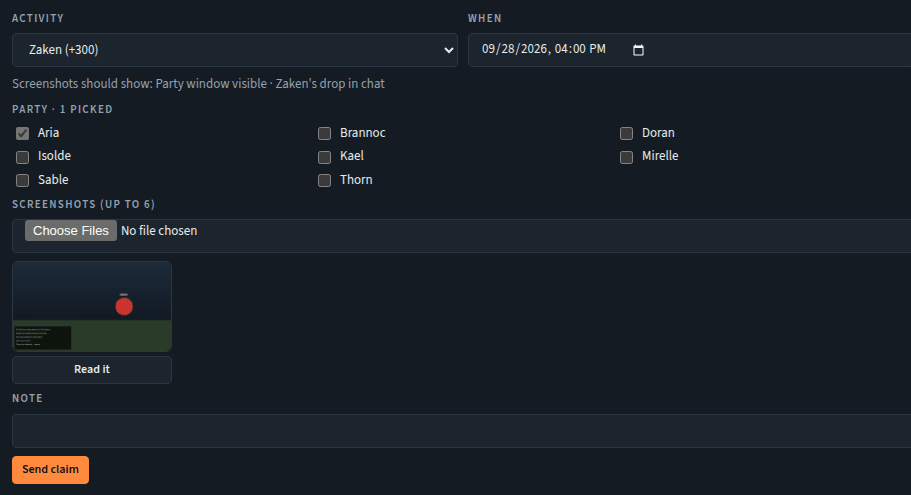
- DKP, Claims. Under New claim, pick the Activity. Its checklist shows: "Screenshots should show: …".
- Set When it happened (within the last two weeks).
- Tick the Party. You're in it already.
- Add Screenshots (up to 6; PNG, JPEG or WebP). Each uploads as soon as you pick it, shrunk by your browser first. Optionally press Read it on one (below).
- Add a Note if the officers should know something (up to 200 characters).
- Press Send claim. It waits in the list as Pending.
While it's pending, Withdraw takes it back (its screenshots are deleted too). Limits: 10 claims waiting at once per member; 40 screenshots an hour. On the Free plan the group's screenshots take at most 50 MB together; an upload past it is refused with "the group's screenshots take … MB of its 50 MB: a paid plan for the group lifts this limit", and the screenshots already there stay readable. Withdrawing a claim frees its screenshots' space; a paid plan raises the limit to 10 GB (plans). Screenshots are stored encrypted with the group's key. Only whoever sent one, and members who can see the DKP standings (See DKP standings and the ledger), can open it.
From Discord: /claim submit with a screenshot attached; /claim mine for your claims.
Reading a screenshot
Instead of typing who was there and what dropped, let Meadhall read the chat in your screenshot. Nothing is filled in until you tick it, and what it reads isn't kept. It reads LU4's chat and item names, so Read it shows on an LU4 group's claims only; on another server, type the rows.
- On a screenshot in your claim, press Read it.
- Draw a box around the chat panel: drag across the screenshot (mouse or finger), or press Bottom left (the chat) or Whole screenshot. With a keyboard, the arrow keys move the box and Shift with them resizes it.
- Press Read. After a few seconds: "What the screenshot says."
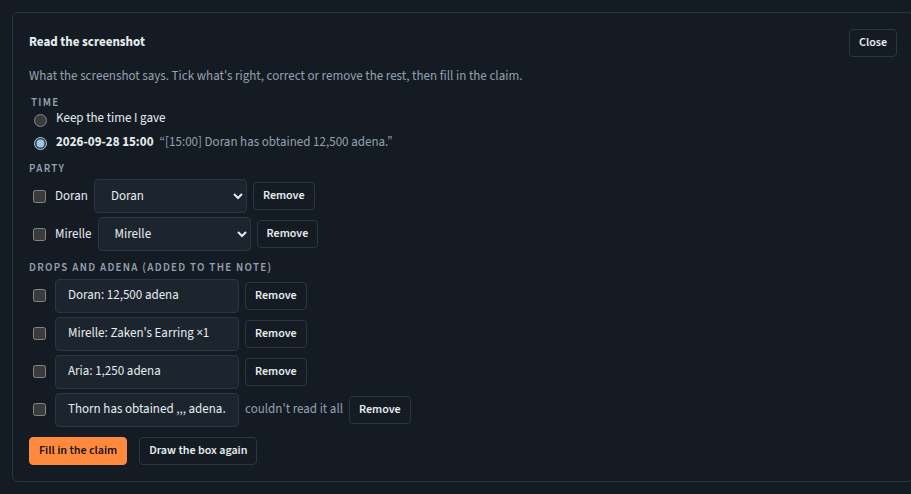
- Tick what's right:
- Time: keep the time you gave, or a time read from the chat;
- Party: each name read, matched to someone in the group (Who is …? lets you correct the match);
- Drops and adena: lines to add to the note; edit them if a letter was misread. "couldn't read it all" marks a line it partly read.
- Press Fill in the claim. Check the claim, then send it. (Draw the box again tries another box.)
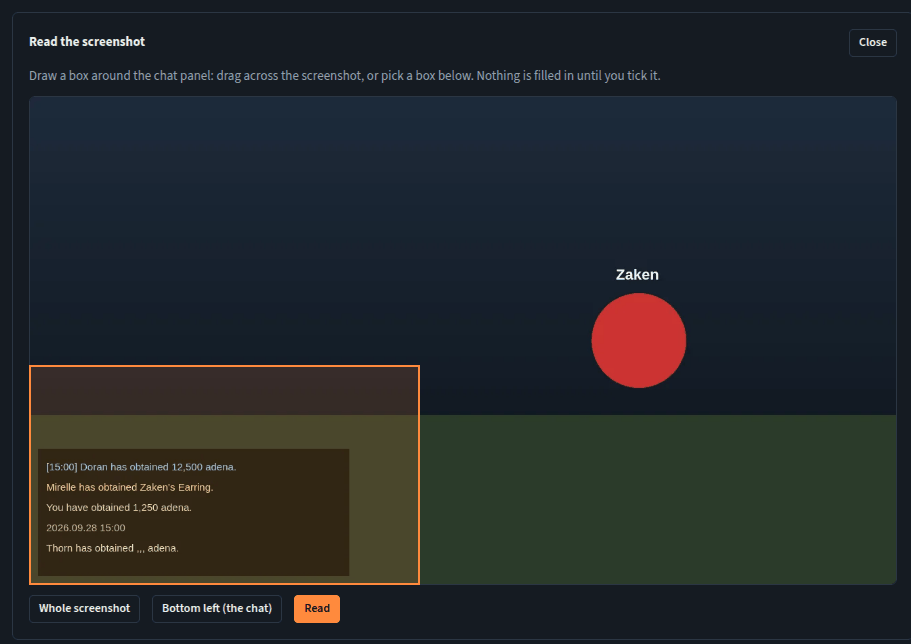
It reads the chat of an English game client; names in it can be in Latin, Cyrillic or Greek letters. If it can't be reached: "The screenshot reader isn't available right now"; fill in the claim yourself.
Approving or rejecting claims
Needs Award and adjust DKP, reverse a batch (officers). You can't decide your own claim (one you sent; for an "I was there" claim, one you're on) unless you also hold Approve or reject your own DKP claims (leaders do; no starter role does).
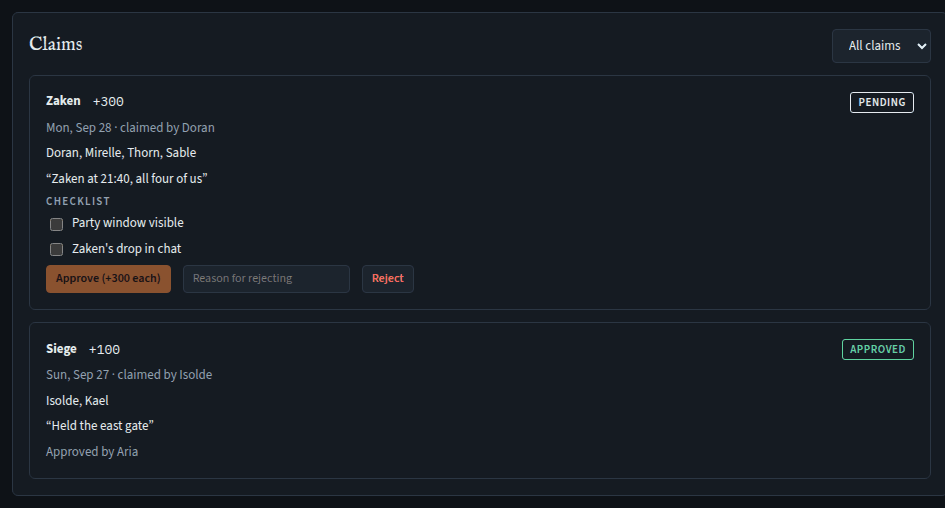
- DKP, Claims (the Dashboard's Review brings you here). Filter with Pending.
- Open Show screenshots (n) and check them against the activity's Checklist, ticking each line.
- Approve (+n each) is enabled once every line is ticked. Pressing it pays everyone in the party who's still in the group, as one ledger line with the claim's note as the reason.
- Or type a Reason for rejecting and press Reject. The member sees why.
From Discord: /claim queue.